The feature for adding tests automatically saves data to prevent the loss of your test during the drafting process; tests being drafted and not yet published will be in the draft section of the Test tab.
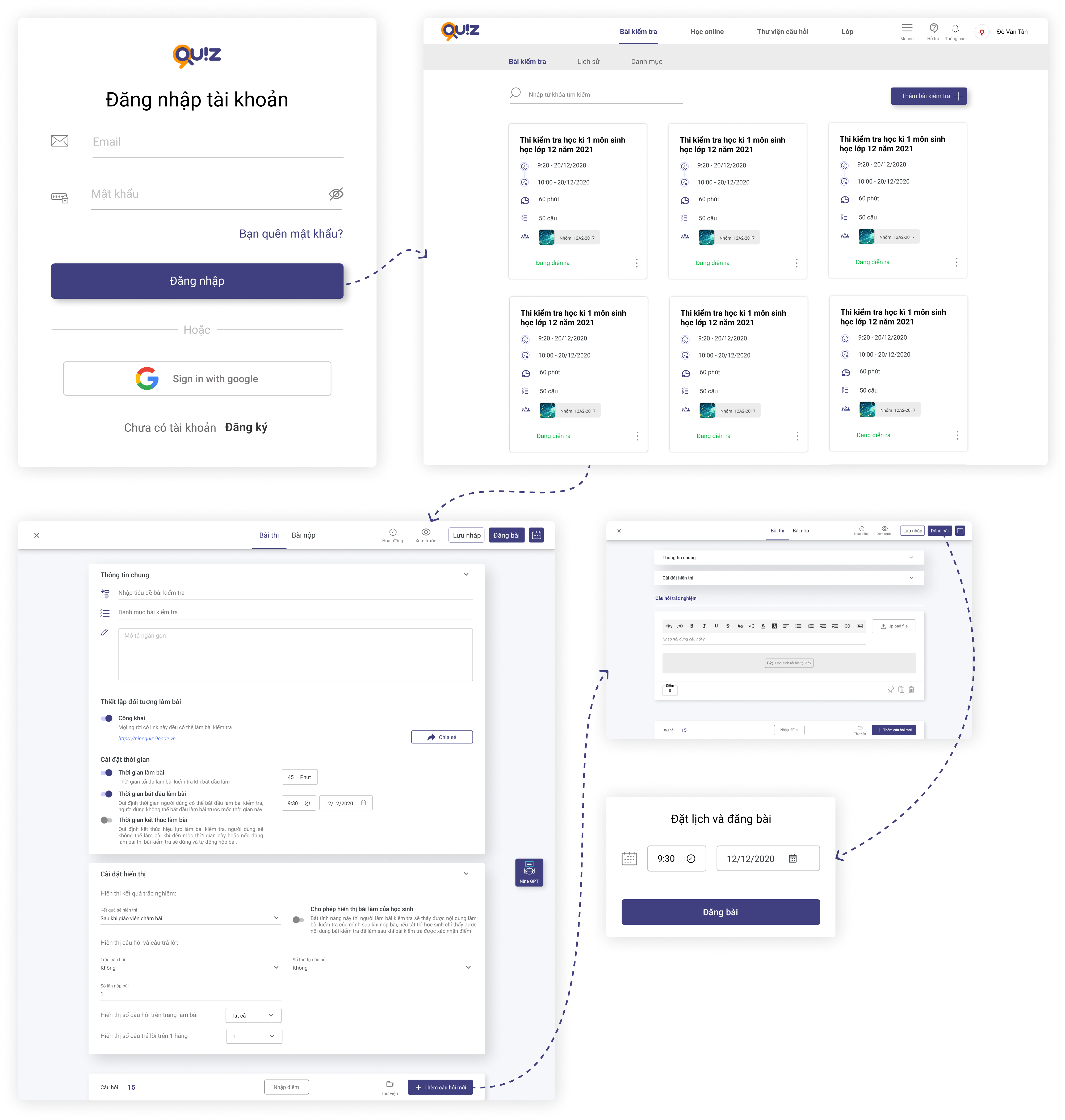
1. Log in to https://ninequiz.com
2. Select the Test tab on the menu bar
3. Select the create test button
4. Enter the required information in the settings section:
- Test title (test name)
- Set test audience (public or select class as needed)
- Set test duration or choose no time limit
- Set the display time for the test to start the online test or choose no regulation
5. Other settings include:
- Display answers in 1 column or 2 columns (default 1)
- Shuffle question and answer order (default no)
- Choose how to display question numbering (default ABC)
- Number of student submissions (default 100)
- Display grading results (default after the teacher grades the test)
- Allow displaying student work (default on)
6. Add questions to the test
- Select the add new question button or you can add questions from the library you previously created
- Select file upload question type (students do the test and submit via Word, PDF, Image files)
- Enter the question content in the editor or copy from a previously prepared Word file.
7. Select publish test or schedule online test in the right corner of the screen.
Note
When uploading files to the test:
For video: ".mp4" extension
For audio: ".mp3" extension
General Information
Class taking the test: The online test only appears on the newsfeed of students in the class added to the test after the test is published.
After publishing the test, the system will notify all students in the added class that a new test has been posted.
Test duration: Is the time students spend taking the test, starting from the moment they confirm starting until the time is up or the validity period ends. After the student selects start test, the system will set a countdown timer until the end of the test duration or validity period.
Test validity period: Is the time when students can choose to start the online test. For example: the test is published at 8:00 AM but the validity period starts at 10:00 AM that day, students must wait until 10:00 AM that day to access and start the test.
Number of questions per page: Depending on the length of the test question content, you can choose to display in 1 column or 2 columns so the test displays according to requirements.
Shuffle question and answer order: Feature to shuffle the order of questions and answers differently for each student's attempt, default is no shuffle.
Number of student submissions: By default, each student will take and submit the test once; you can increase the number of attempts and submissions for all participating students.
Record attempt history: The system will record the process and actions on the student's test, which can be used to compare the student's work results with the final result confirmed by the teacher or to review the number of times the student exited the online test screen.
Auto-submit when students switch browser tabs or device screens: default is off, you can enable this feature to strictly monitor the student's test process (note: this feature is not recommended because many risks can occur during the process that cause the student to lose the test interface, such as internet loss, incoming calls when testing on a phone, and many other incidents...).
AI mechanism for grading essays
