Currently, with the strong development of educational application software, it is not difficult for us to find educational software that supports management and training. Today's teaching software offers many useful features to support teachers in their teaching activities. However, the diversity of features can make teachers feel overwhelmed when there are too many functions in one application.
Understanding teachers' concerns, Ninequiz educational software was created with the purpose of simplifying the training process for teachers. It helps teachers avoid spending too much time learning and mastering the features of Ninequiz software.
Ninequiz focuses on two main features for the teacher management interface:
- Online class scheduling feature
- Test creation and configuration feature
1. Online Class Scheduling Feature
NineQuiz integrates platforms for businesses and schools: Google Meet, Zoom, Microsoft Teams. These three chat platforms are widely used with many useful accompanying features: group creation, chat, video calls, data sharing, etc.
Integrating these chat platforms into the NineQuiz software helps teachers avoid using too many different platforms. In addition, creating and managing classes helps teachers and students keep track of their schedules in the best way.
Instructions for creating an online class schedule with NineQuiz software
- Step 1: Access www.ninequiz.com
- Step 2: Log in with your Gmail or registered account
- Step 3: Select the "Create and manage tests" interface
- Step 4: Click on the "Online learning" interface
- Step 5: Click on "Add class schedule"
- Step 6: Enter general information
- Title
- Time, date
- Choose learning platform (Google Meet, Zoom, Microsoft Teams)
- Add class
- Enable/disable automatic student approval as needed
- Step 7: Click "Add" to complete
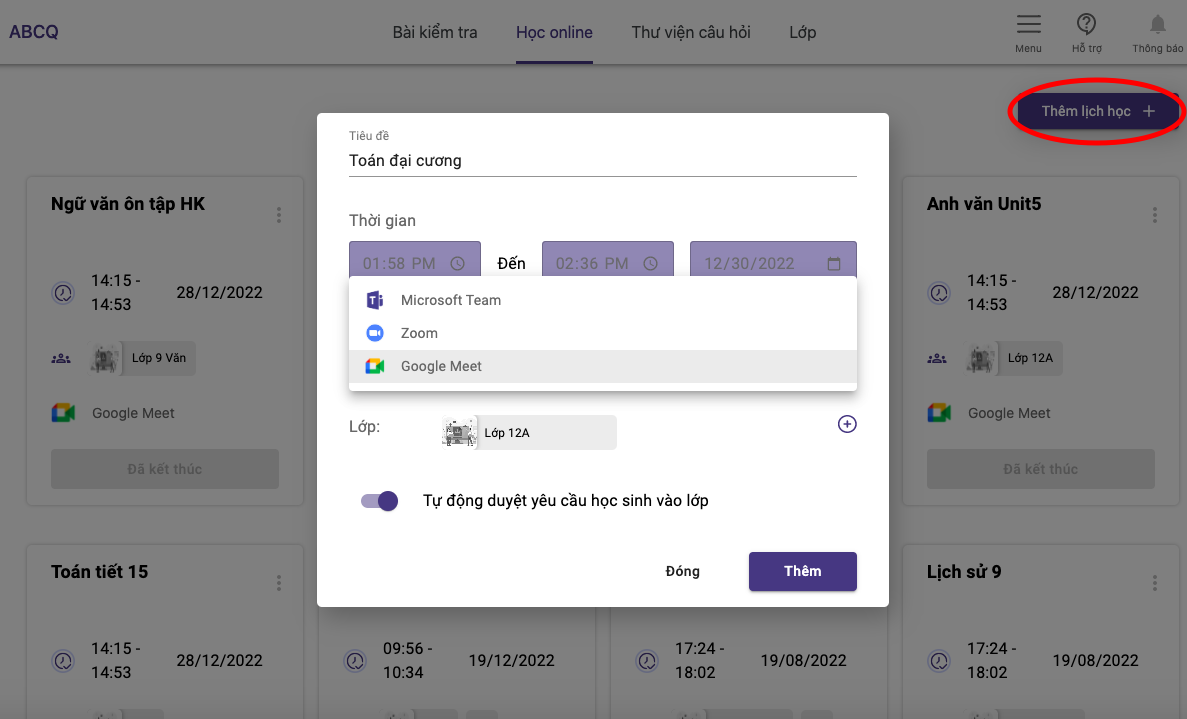
Create an online class on Ninequiz
2. Test Creation and Configuration Feature
- Various types of tests: essay, multiple choice with many answer options
- Set test duration and schedule test posting in advance
- Automatic grading for multiple-choice tests
- Strict monitoring of students during the test
- Feature to record the test-taking process
- Automatic submission when students leave the test screen
- Randomize question and answer order for each student
Instructions for creating and configuring a test
- Step 1: Access https://ninequiz.com
- Step 2: Log in with your Gmail or registered account
- Step 3: Select the teacher interface
- Step 4: On the test page, click "Create test"
- Step 5: Enter general information for the test
- Test title
- Category (if needed)
- Set target participants
- Set test duration
- Configure other display settings (if needed)
- Step 6: Click "Add new question" or upload a file from your computer and select questions from the library
- Step 7: Enter content for questions and answers
- Step 8: Enter points and post the test
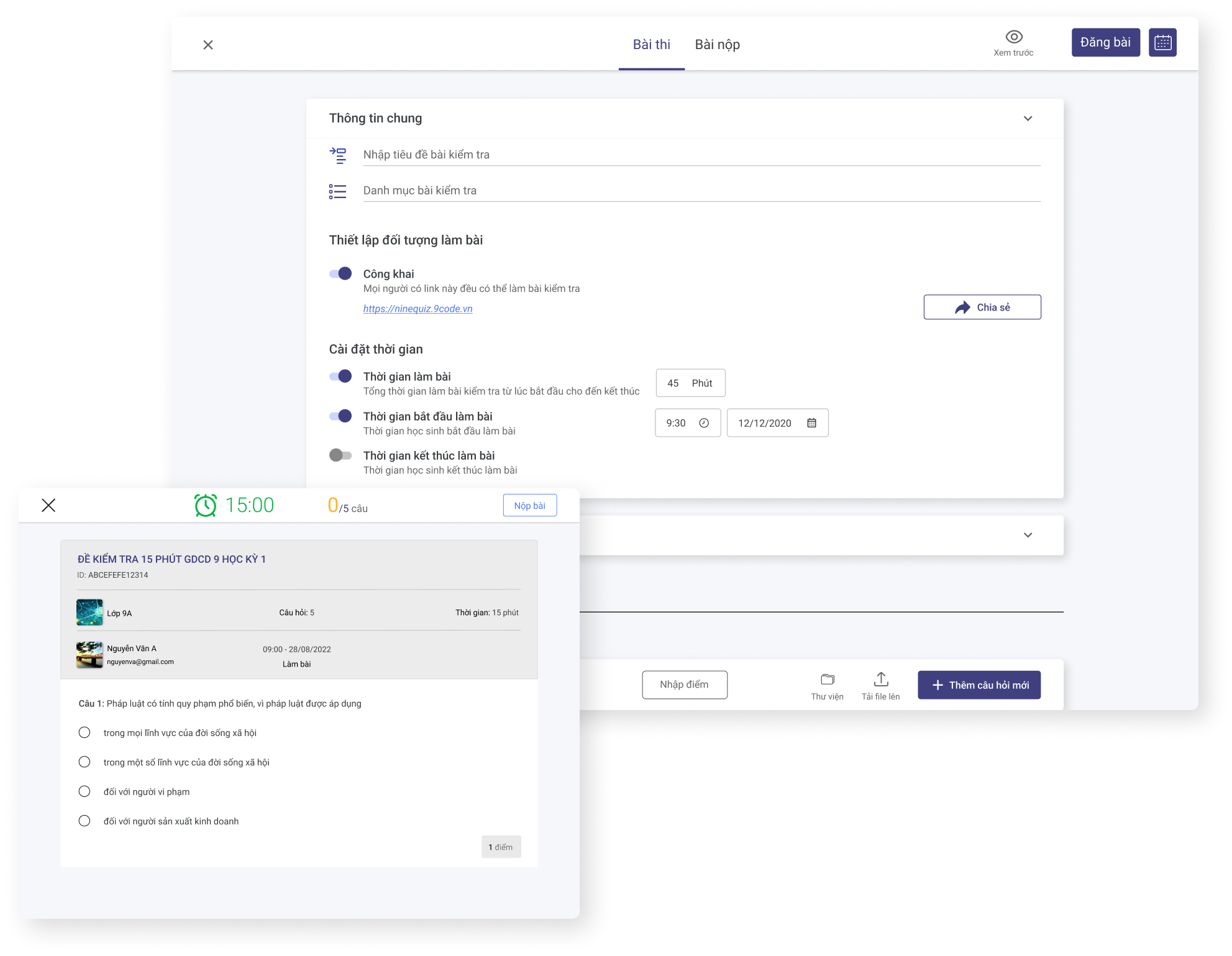
Create an online test on Ninequiz
