Ninequiz is a useful multiple-choice test management software that supports teachers in creating and assigning English multiple-choice exercises and tests easily and effectively. To assign English multiple-choice exercises using Ninequiz, simply follow these easy steps:
Step 1: Log in to the system https://ninequiz.com > Select the feature for teachers
If you do not have an account, please click the register button at: https://www.ninequiz.com/register and enter your information
Step 2: From the multiple-choice test management interface > Click the Create Test button

Initial image

Image 1

Image 2x

Image 3
Image
Step 3: Enter general information
- Test title
- Short description (Optional)
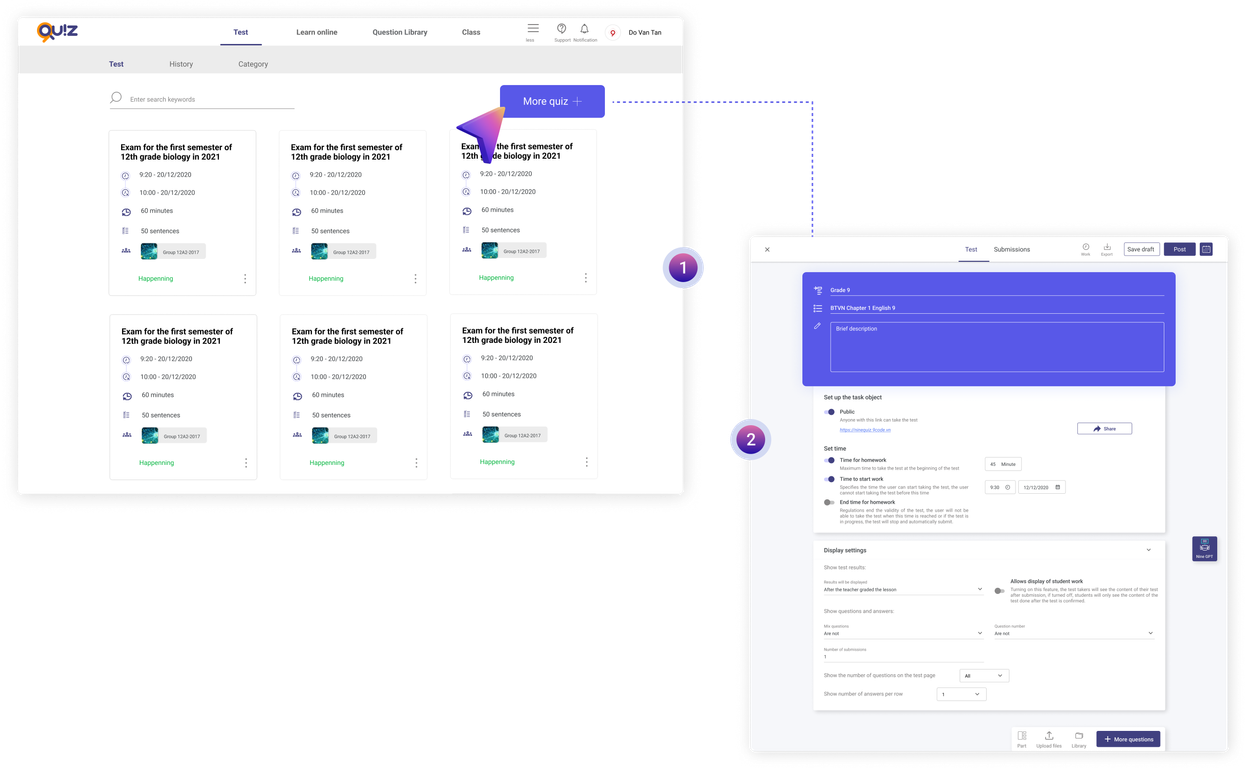
Step 4: Enter the exercise requirements in Section 1
There are many types of English multiple-choice exercises. Please follow the instructions below to create specific types of English exercises:
Type 1: English Listening Exercises
- Enter title: in this section, you need to enter the exercise requirements
Example:
Listen and decide if the following statements are True (T) or False (F).
- Enter description: in this section, teachers can upload video (.mp4) or audio (.mp3) files for students to practice listening exercises
- Select question type: Choose 1 answer
- Enter question content/number
Example:
The way we eat and how we behave when having meals reveal a lot about our personality.
- Enter answers (note: do not write the order of the answers, as the system has already set the order)
Example: Enter the answer in the Answer field:
True
False
- Set the correct answer: Turn on/off the correct button behind the correct answer

Teacher's listening exercise creation interface
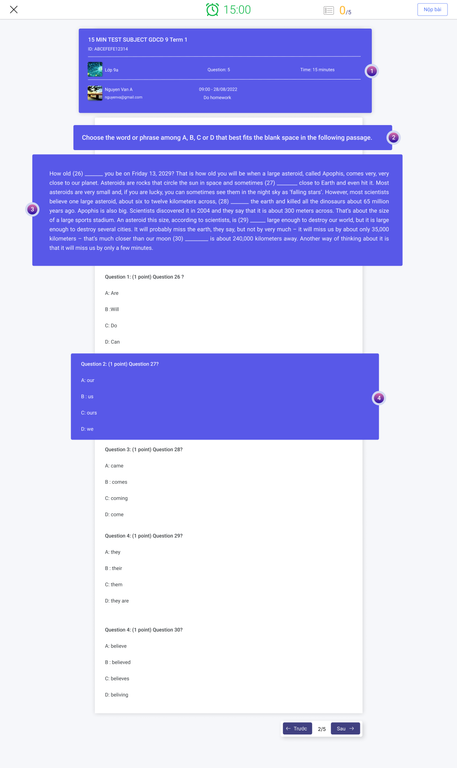
- Student's exercise interface
Type 2: Fill-in-the-blank exercises in English passages
- Enter title: in this section, you will enter the English exercise requirements
Example: Choose the word or phrase among A, B, C or D that best fits the blank space in the following passage.
- Enter description: in this section, you will enter the content of the English passage
Example: How old (26) _______ you be on Friday 13, 2029? That is how old you will be when a large asteroid, called Apophis, comes very, very close to our planet. Asteroids are rocks that circle the sun in space and sometimes (27) ________ close to Earth and even hit it. Most asteroids are very small and, if you are lucky, you can sometimes see them in the night sky as ‘falling stars’. However, most scientists believe one large asteroid, about six to twelve kilometers across, (28) _______ the earth and killed all the dinosaurs about 65 million years ago. Apophis is also big. Scientists discovered it in 2004 and they say that it is about 300 meters across. That’s about the size of a large sports stadium. An asteroid this size, according to scientists, is (29) ______ large enough to destroy our world, but it is large enough to destroy several cities. It will probably miss the earth, they say, but not by very much – it will miss us by about only 35,000 kilometers – that’s much closer than our moon (30) _________ is about 240,000 kilometers away. Another way of thinking about it is that it will miss us by only a few minutes.
- Select question type: Choose 1 answer
- Enter question content/number
Example: Question 26
- Enter answers (note: do not write the order of the answers, as the system has already set the order)
Example: The answers include: A. are B. will C. do D. can
Enter each answer in a separate line in the answer field:
are
will
do
can
- Set the correct answer: Turn on/off the correct button behind the correct answer
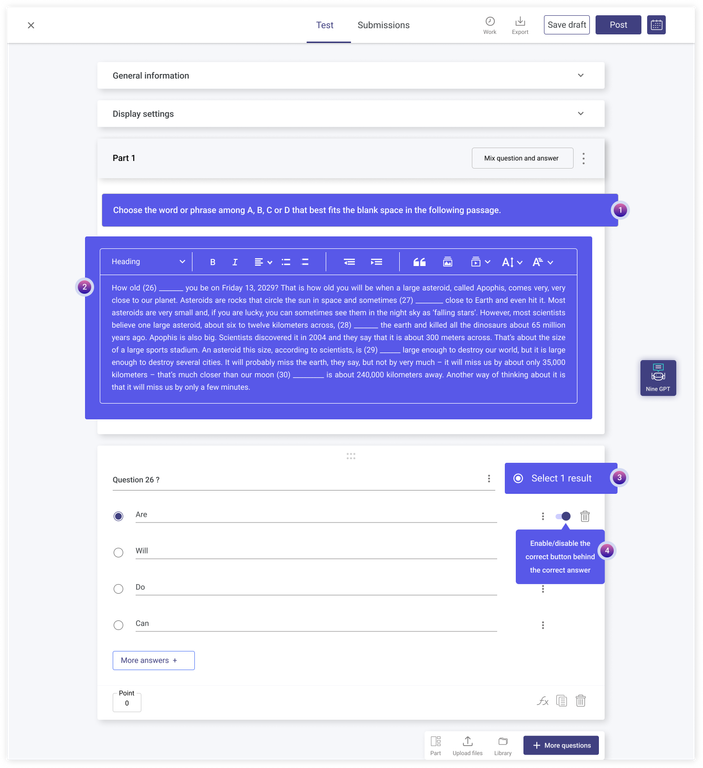
If teachers want to add a new similar exercise, click the Section button at the top right of the test to add a new section and follow the instructions in section 1.
Type 3: English essay exercises
- Enter title: in this section, you will enter the English exercise requirements
Example: Rewrite the sentences into a new one using the given words in brackets. Do not change the given words in any way.
- Enter description: optional, if the exercise does not have a description, you can leave it blank
- Select question type: Choose short answer
- Enter question content
Example: Question 37: Many people think there is no city in Vietnam that is cleaner than Da Nang City. (the)
- Leave the answer field blank as students will enter their answers directly in the test
- Add/remove questions and answers
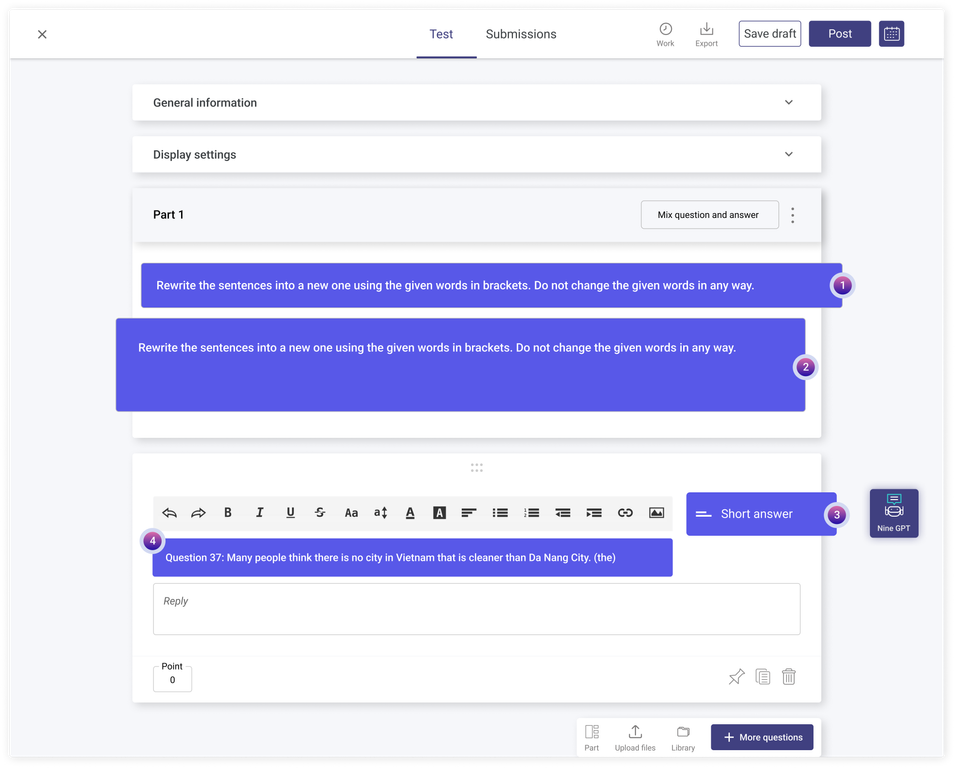
Teachers can add or remove questions as well as the number of answers in the test by clicking the Add question/answer button.
In addition, Ninequiz allows teachers to upload Word files, images, videos, and audio files up to 2MB to create questions or answers, making English exercises more lively and visual.
Step 5: Complete the creation of the multiple-choice exercise
After creating the questions, click the Post button or set the desired date and time for posting as you wish.
Detailed description of the settings for test time, immediate posting, etc.
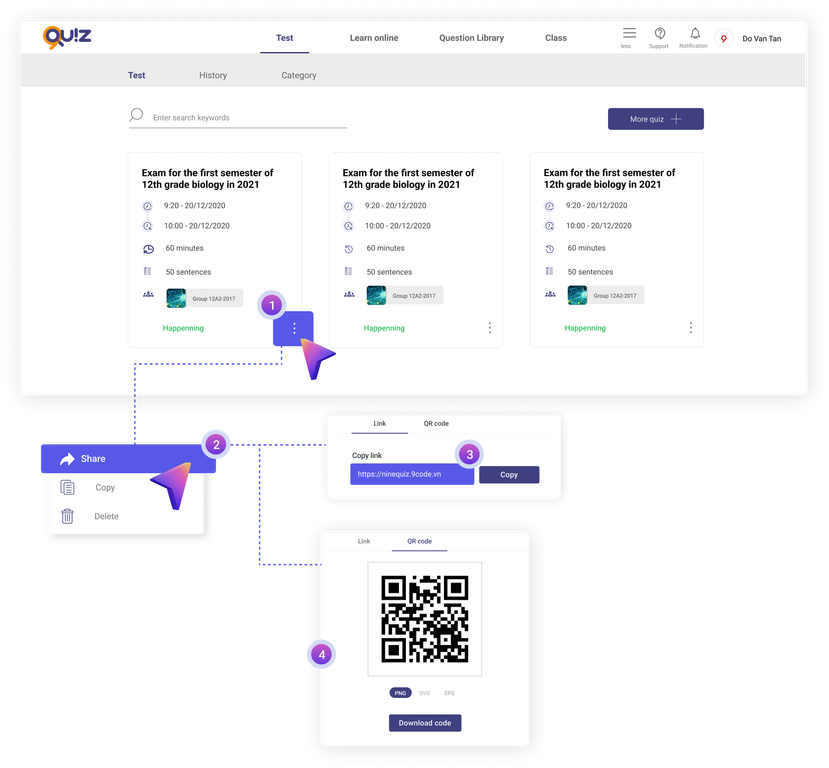
Step 6: Share the online test with students
In the test interface, there are 2 ways to share the online test:
- Method 1: Share via link
Click the Share button > Copy the link > Send to students > Students access the link to do the test without downloading/logging into the app.
- Method 2: Share via QR Code
Click the QR code button > Download the QR code image > Send to students > Students scan the QR code and do the exercise without downloading/logging into the app.
Step 7: Check students' submissions
On the main screen of the test, click on Submissions to check if students have submitted, grade/confirm the score (if the system grades automatically).
Furthermore, you can download students' test files by clicking the Download button to view or store the data.
With these steps, teachers can easily create English homework or tests for students quickly and effectively.
Some advanced settings for teachers
Set specific test participants
With this feature, you can control who participates in the test by turning the Public button on or off:
- On: Anyone with the link can take the test
- Off: Add members by adding from the Class list or by Email.
Time settings
Test duration (Maximum time allowed to take the test after starting): xx Minutes
Test start time (Specifies when users can start the test; users cannot start before this time)
Test end time (Specifies when the test is no longer valid; users cannot take the test after this time, or if they are taking the test, it will automatically submit)
* Note: Teachers can schedule the test date and time for students by setting the start and end times in the future.
Display settings:
Users can choose to enable or disable the feature to display students' test content. If enabled, test takers will see their test content after submission. If disabled, students will only see the test content after the test is graded and confirmed.
Additionally, teachers can choose to display students' scores immediately in the "Results will be displayed" section as follows:
- After the teacher grades the test
- After the test time ends
- After the student submits the test
* Note: In the Display questions and answers section, the system will automatically generate if the teacher does not edit/set it up.
Use artificial intelligence to quickly create tests
Ninequiz has successfully integrated artificial intelligence into the software system under the name Nine GPT. This is a tool for creating tests based on prompts or text, helping teachers save time and effort in preparing tests.
Learn more about Nine GPT at: https://www.ninequiz.com/document/yeu-cau-chat-gpt-tao-cau-hoi-trac-nghiem
If you have any questions or need assistance, please contact us via hotline 086 868 5247 or visit our website: https://www.ninequiz.com/ for more information.