Currently, as the era of information technology continues to develop, creating online quizzes and tests is becoming increasingly popular, especially in the process of review and exam organization, replacing the traditional paper-based multiple-choice exams.
Among them, Ninequiz is a software that manages and facilitates online multiple-choice tests easily and is suitable for both schools and businesses.
- Students can easily and quickly view online classes or assignments that have taken place.
- The interface during exams and tests is user-friendly.
- Automatic saving during the test, in case of unexpected incidents such as internet disconnection or other unforeseen issues, without losing the test.
- Create and manage online classes proficiently.
- Integrates with multiple platforms to support online teaching and learning such as Zoom, Microsoft Teams, or Google Meet.
- Create and manage tests.
- Supports various question types such as: single choice, multiple choice, paragraph, file upload.
- Set up test duration and posting time suitable for each type of test.
- Integrates QR codes in tests, making it easy to share with everyone.
Create a test and set the posting time on Ninequiz
Many busy teachers cannot post tests on time; with Ninequiz, teachers only need to prepare the test in advance and schedule it, and the test will be automatically posted at the set time. The steps are as follows:
- Step 1: Go to https://ninequiz.com
- Step 2: Log in with Gmail or a registered account
- Step 3: Select the teacher interface
- Step 4: In the test section, click "Create test"
- Step 5: Enter the general information for the test
- Test title
- Category (if needed)
- Set up test participants
- Set test duration
- Choose other display settings
- Step 6: Click "Add new question"
- Step 7: Enter the content for the question and the answers. Repeat for the following questions.
- Step 8: Enter points for each question or for the entire test as needed
- Step 9: Click the calendar icon at the top right, set up the time and date to display the test as needed
- Step 10: Click "Post" to complete
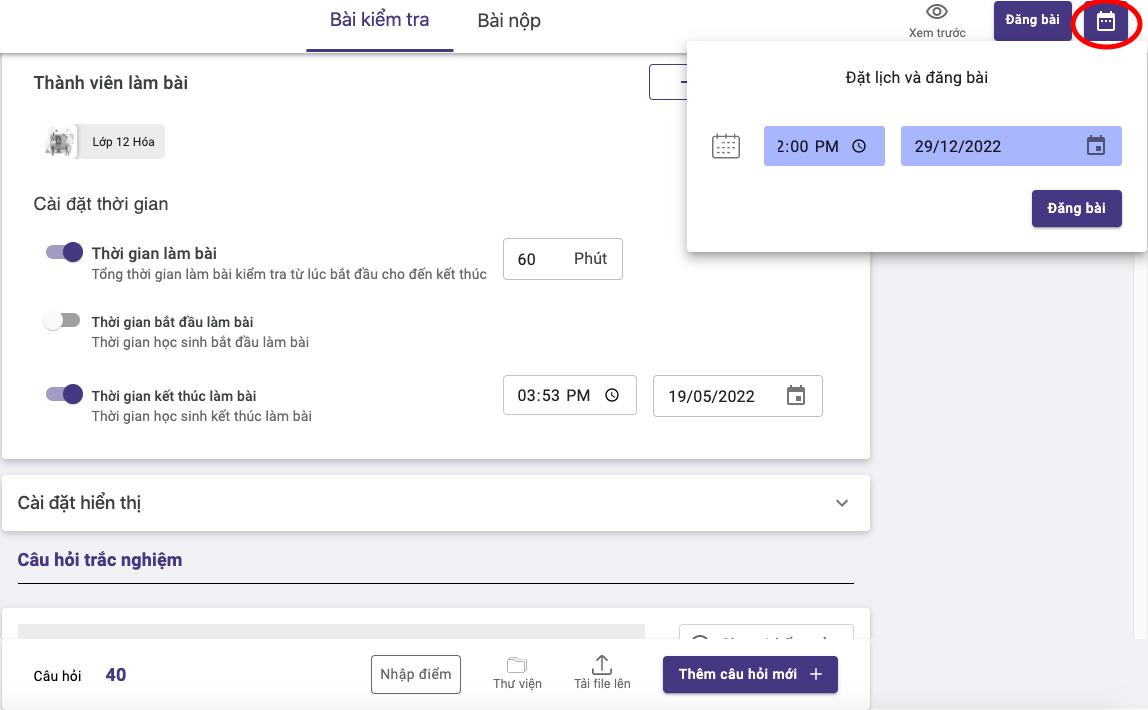
Teachers can customize the posting time on Ninequiz as needed