Ninequiz provides flexible tools that allow teachers to design and create a variety of customizable quizzes to effectively assess students' chemistry knowledge. With automatic grading and instant feedback, Ninequiz offers an interactive learning experience and feedback for students, enhancing the learning and assessment process.
To create a Chemistry quiz with Ninequiz, simply follow these steps:
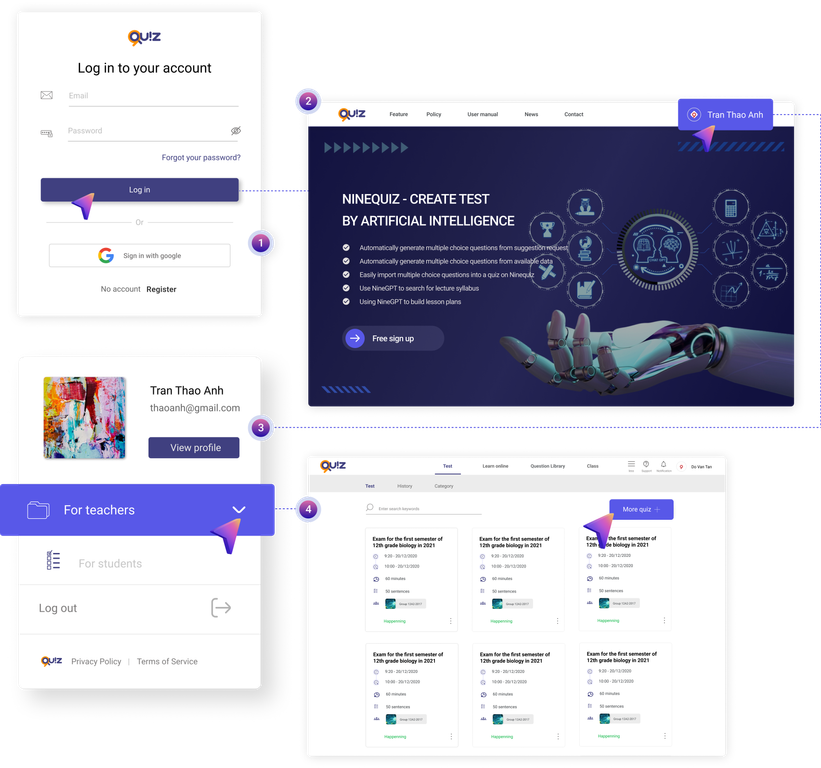
Step 1: Log in to the system https://ninequiz.com > Select the feature for teachers
If you do not have an account, please click the register button at: https://www.ninequiz.com/register and enter your information
Step 2: From the quiz management interface > Click the Create Test button
Step 3: Enter general information
- Test title
- Short description (Optional)
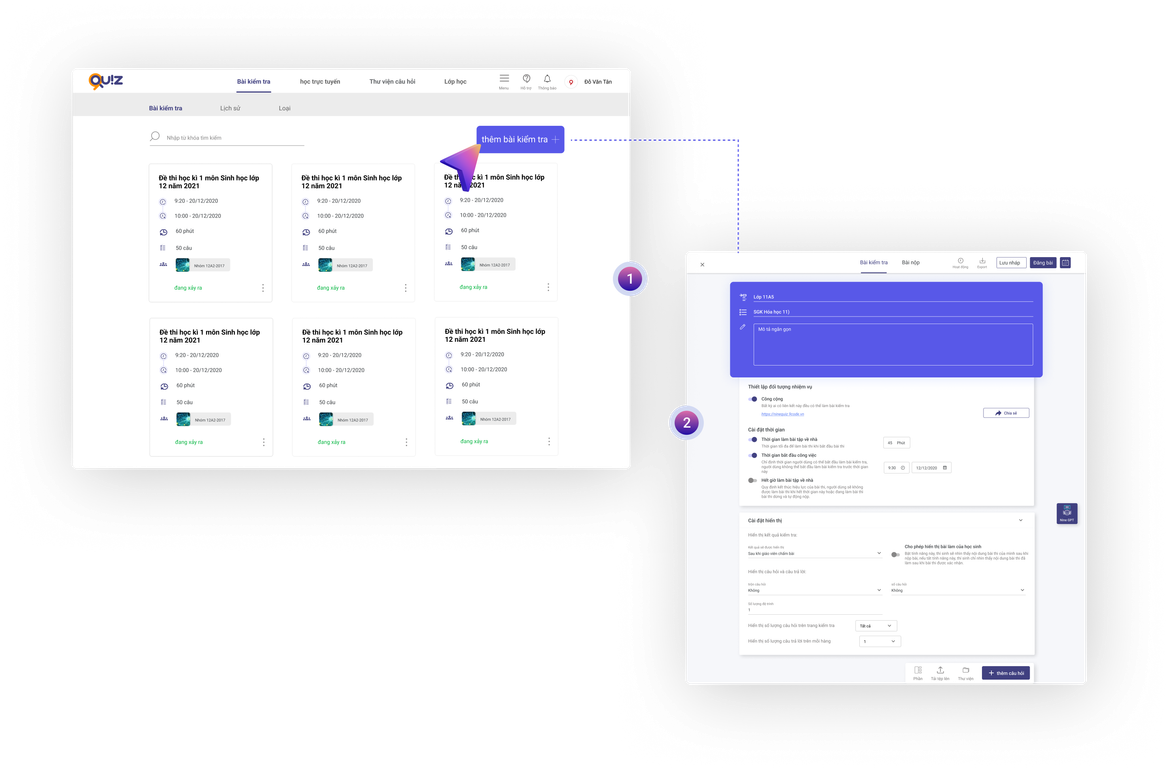
Step 4: Enter section title: here you should enter the assignment requirements in Section 1
Step 5: Enter description optional
Step 6: Select question/answer type
For multiple-choice exercises, you can design questions and answers: select one answer, select multiple answers.
For essay exercises, you can choose short answer or upload a file to the software system so that students can upload files or answer directly in the test.
Step 7: Enter the question and answer content:
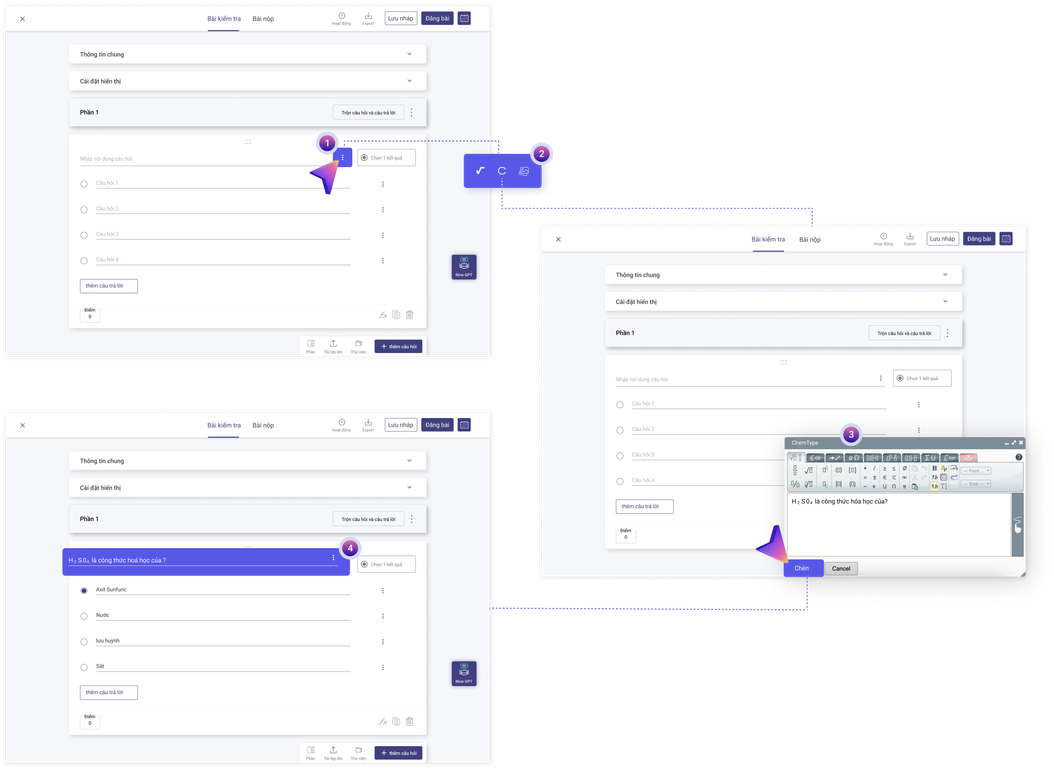
The Chemtype software is integrated into Ninequiz, allowing teachers to easily create high-quality Chemistry quizzes, including complex chemical formulas. Teachers can use Chemtype to input mathematical expressions intuitively and accurately in the questions.
- Click the three-dot button at the end of the question/quiz line
- Select the Chemtype tool to open the chemical formula editor window
- Edit symbols, chemical formulas as needed: write equations, number of moles, molecular formulas, etc.
- After editing, click the Insert button to add it to the test
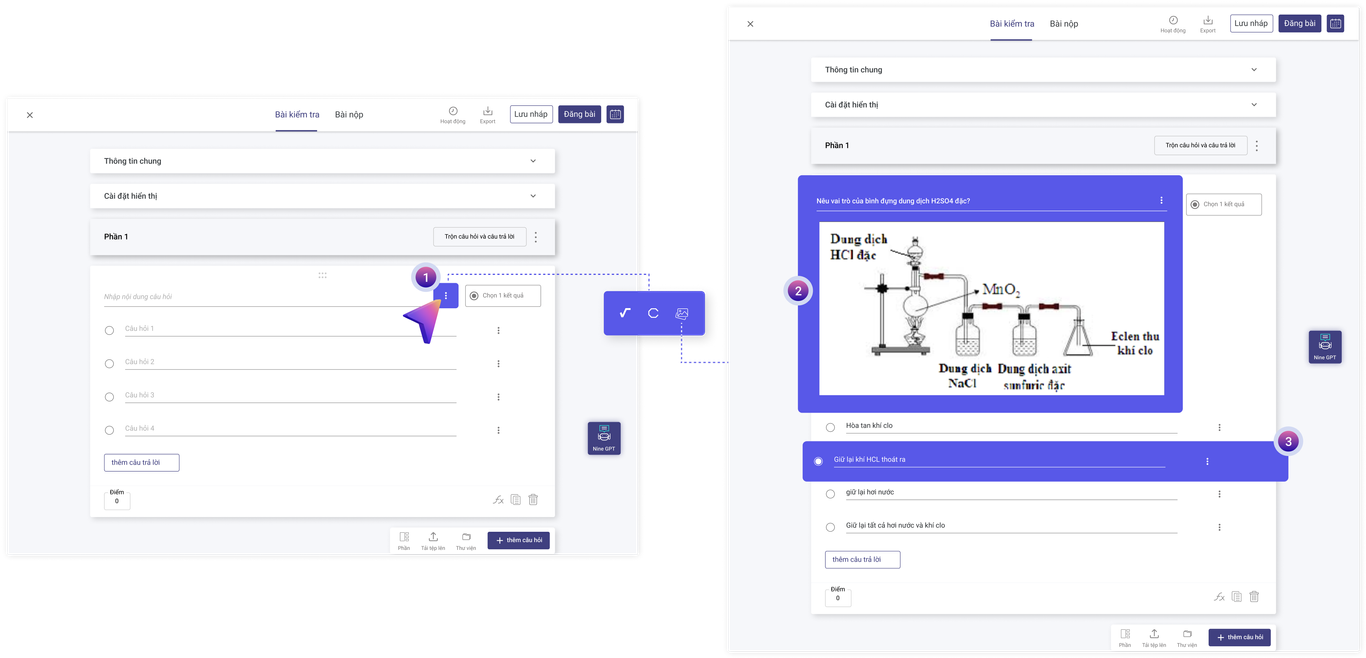
In addition, Ninequiz has integrated artificial intelligence into the software, called Nine GPT, which supports teachers in searching for materials and creating quizzes using prompts or text easily and conveniently.
See now: Create multiple-choice questions with Nine GPT
Step 8: Complete creating the quiz
After creating the questions, click the Post button or set the date and time to post as desired by the teacher.
Specifically describe the settings for test duration and immediate posting
Step 9: Share the online test with students
In the test interface, there are 2 ways to share the online test:
- Method 1: Share via link
Click the Share button > Copy the link > Send to students > Students access the link to take the test without downloading/logging into the app.
- Method 2: Share via QR Code
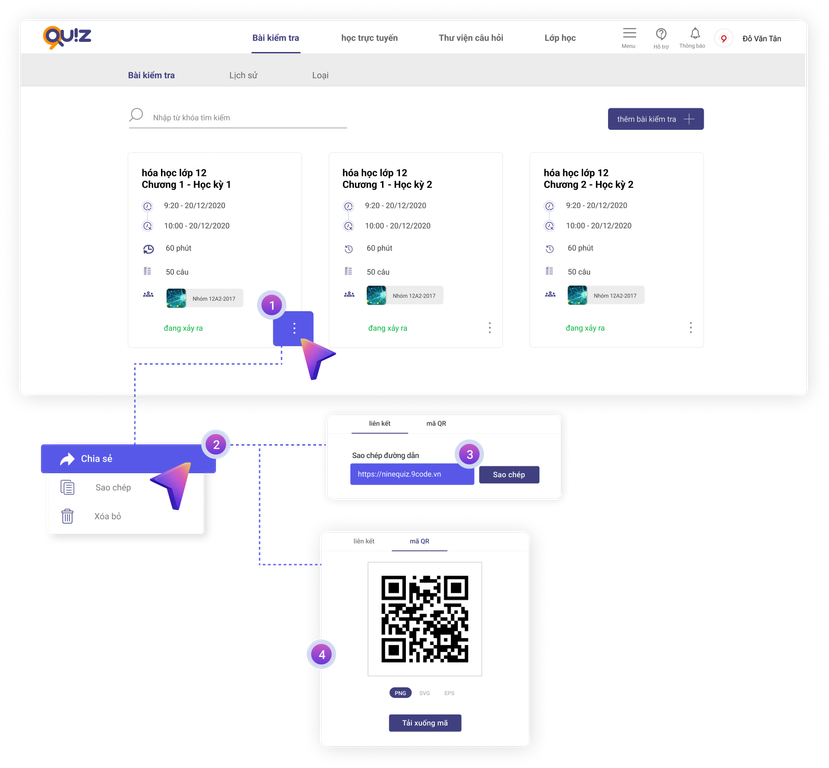
Click the QR code button > Download the QR code image to your device > Send to students > Students scan the QR code and take the test without downloading/logging into the app.
Step 10: Check students' submissions
On the main screen of the test, click on Submissions to check whether students have submitted, grade/confirm scores (if the system grades automatically).
Furthermore, you can download students' test files by clicking the Download button to view or store the data.
With these steps, teachers can easily create homework or English tests for students quickly and efficiently.
Some advanced settings for teachers
Set specific test participants
With this feature, you can control who participates in the test by toggling the Public button:
- On: Anyone with the link can take the test
- Off: Add members by adding from the Class list or by Email.
Time settings
Test duration (Maximum time allowed to take the test after starting): xx Minutes
Test start time (Specifies when users can start the test; users cannot start before this time)
Test end time (Specifies when the test is no longer valid; users will not be able to take the test after this time or, if in progress, the test will stop and be submitted automatically)
* Note: Teachers can schedule the test date and time for students by setting the start and end times in the future.
Display settings:
Users can choose to enable or disable the feature to display students' test content. If enabled, test takers will see their test content after submission. If disabled, students will only see the test content after their test has been graded.
Additionally, teachers can choose to display students' scores immediately "Results will be displayed" in the following ways:
- After the teacher grades the test
- After the test duration ends
- After the student submits the test
* Note: In the Display questions and answers section, the software system will automatically generate if the teacher does not edit/set it up.
Use artificial intelligence to quickly create tests
Ninequiz has successfully integrated artificial intelligence into the software system under the name Nine GPT. This is a tool for creating tests based on prompts or text, helping teachers save time and effort in preparing tests.
Learn more about Nine GPT at: https://www.ninequiz.com/document/yeu-cau-chat-gpt-tao-cau-hoi-trac-nghiem
If you have any questions or need assistance, please contact us via hotline 086 868 5247 or visit our website: https://www.ninequiz.com/ for more details.