Since the outbreak of the pandemic, training has shifted to online formats to meet the general situation of society. Understanding the urgent needs of today’s education, Ninequiz has decided to launch the online testing feature in the Ninequiz software. Students are not only trained on the software but can also participate in online exams from anywhere at any time. This feature is useful for all types of educational organizations such as schools, training centers, academy groups, vocational institutes, etc.
Students can easily participate in online exams, test series, mock exams, and submit their answers using any Android or iOS device.
Let’s see how the online exam feature works in the Ninequiz training application
1. First, teachers can create tests/exams on the Ninequiz application
2. Students receive instant notifications when a test is scheduled or published
3. Next, on the exam day, students can participate in the exam through the Ninequiz software system.
4. Finally, view answer sheets and exam scores on the web software
How students participate in exams on Ninequiz
The Online Exam feature is now available in the NineQuiz software, allowing students to take live or scheduled tests directly from their accounts. Students can take online exams, in-class tests, and live tests from Ninequiz without being physically present on campus.
To take an online test from the Ninequiz training software, students can follow these steps:
- Step 1: Visit https://ninequiz.com
- Step 2: Log in with your Gmail or registered account
- Step 3: Select the student interface
- Step 4: In the "Newsfeed" section, the available tests for students will be displayed
- Step 5: Students select the test they want to take and click "Start Exam"
- Step 6: Students proceed to take the test and click "Submit"
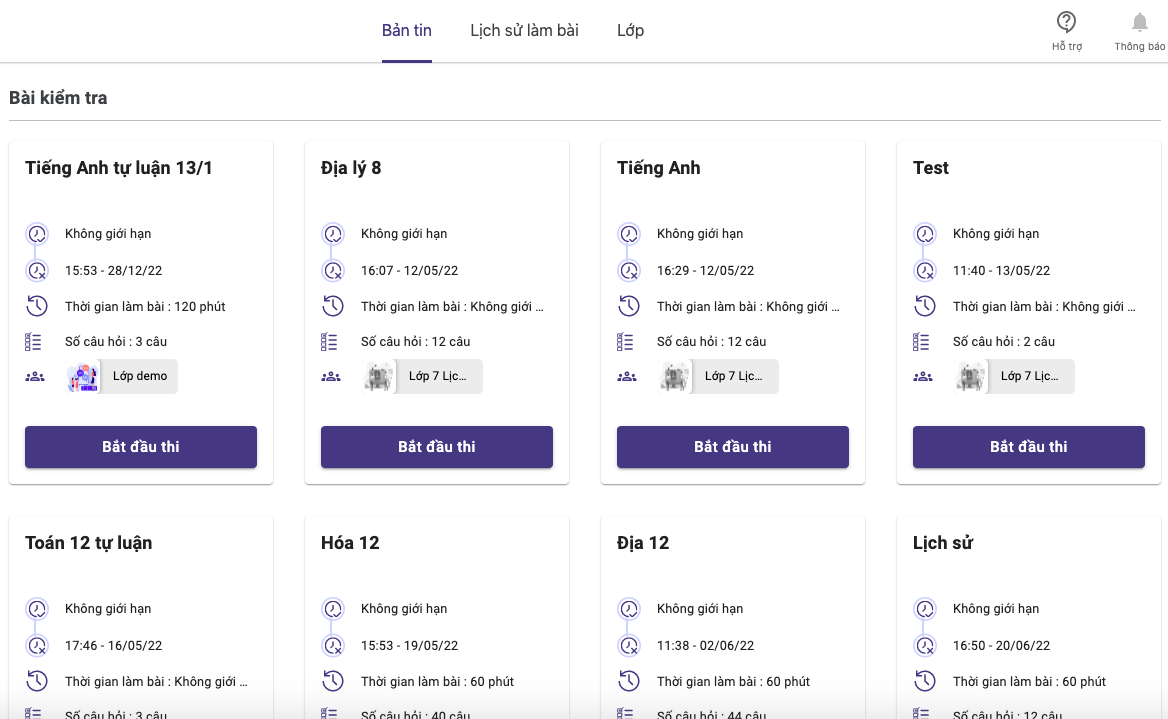
The list of tests available for students is displayed on Ninequiz
Important notes
- Students can only access the exam at the scheduled date and time.
- Once the exam has started, students are not allowed to pause or stop the exam.
- The test will be automatically saved after each action and will be automatically submitted if the student switches screens
- After the exam results are announced, students can view their results