The auto-save feature for adding tests is designed to prevent the loss of your test during drafting. Any test that is being drafted and has not yet been published will be stored in the Drafts section of the Tests tab.
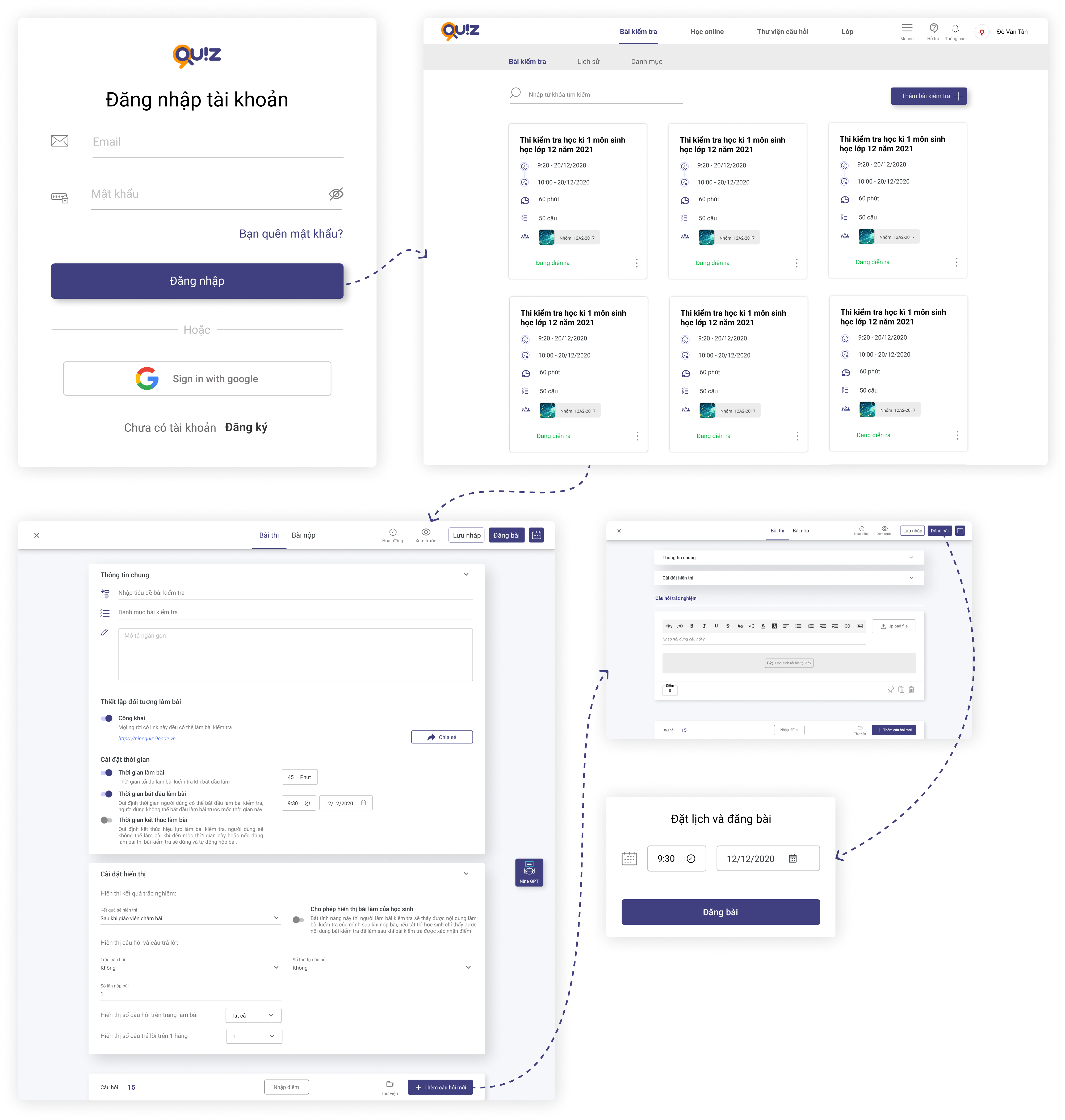
1. Log in to https://ninequiz.com
2. Select the Tests tab on the menu bar
3. Click the create test button
4. Enter the required information in the settings section:
- Test title (name of the test)
- Set the target audience (public or select class as needed)
- Set the test duration or choose no time limit
- Set the display time for the test so students can start taking the test online, or choose no restriction
5. Other settings include:
- Display answers in 1 column or 2 columns (default is 1)
- Shuffle question and answer order (default is no shuffle)
- Choose how to display question numbering (default is ABC)
- Number of submissions allowed per student (default is 100)
- Display grading results (default is after teacher grading)
- Allow students to view their submissions (default is enabled)
6. Add questions to the test
- Click the Add new question button or you can add questions from the library you previously created
- Select the file upload question type (students complete and submit their answers as Word, PDF, or Image files)
- Enter the question content in the editor or copy from a pre-prepared Word file.
7. Click Publish test or Schedule the online test in the top right corner of the screen.
Note
When uploading files to the test:
For video: use the ".mp4" extension
For audio: use the ".mp3" extension
General Information
Class taking the test: The online test will only appear on the news feed of students in the class added to the test after it is published.
After the test is published, the system will notify all students in the added class that a new test has been posted.
Test duration: This is the time during which students take the test, starting from the moment they confirm to begin until the end of the test time or the end of the test's validity period. After students choose to start the test, the system will set a countdown timer until the test time or validity period ends.
Test validity period: This is the period during which students can choose to start the online test. For example: if the test is published at 8:00 AM but the validity period starts at 10:00 AM that day, students must wait until 10:00 AM to access and begin the test.
Number of questions per test page: Depending on the length of the test questions, you can set the display to 1 column or 2 columns for optimal presentation.
Shuffle question and answer order: The shuffle feature randomizes the order of questions and answers for each student's test. By default, shuffling is disabled.
Number of submissions per student: By default, each student can take and submit the test once. You can increase the number of attempts and submissions for all students participating in the test.
Record test history: The system will record the student's test-taking process and actions on the test, which can be used to compare the student's answers with the final results confirmed by the teacher or to review how many times the student exited the online test screen.
Auto-submit when students switch browser tabs or device screens: By default, this is disabled. You can enable this feature to closely monitor the test-taking process (note: this feature is not recommended as many risks may occur during the test, such as internet disconnection, incoming calls on mobile devices, and other incidents that may cause students to lose the test screen).